

Getting Started with Spreadsheets — No Experience Required
Learn how to set up your first spreadsheet, enter data correctly, and use basic functions that actually save time.

It's frustrating when files disappear into your computer. This guide covers folders, naming systems, and backup strategies that keep everything organized and safe.
Files have a way of scattering everywhere. You save something, then months later you can't remember if it's in Documents, Downloads, or buried three folders deep somewhere. We're not going to judge — it happens to everyone. The good news? A simple system takes maybe an hour to set up, and it'll save you countless hours of hunting.
Before you organize anything, you'll want to understand what you're working with. Open your Documents folder — really look at it. How many random files are sitting there? How many folders are named "Stuff" or "2024" or "Important"?
The first step isn't creating new folders. It's deciding on a system that makes sense for how you actually work. Some people think by year. Others by project. Some by file type — all photos here, all financial documents there. There's no single "right" way. What matters is that it's clear to you.
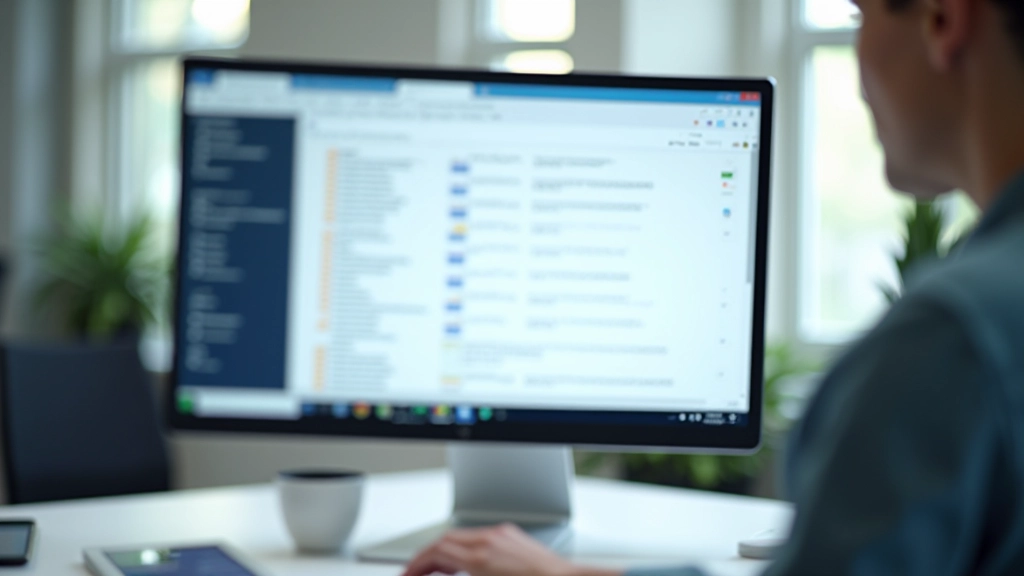

This is where most people struggle. You'll save a file called "Draft" or "Final" and then six months later you've got seventeen versions with those same names. The problem? You can't tell them apart.
A good filename tells you three things: what it is, when it's from, and which version it is. You don't need to be fancy. Just be specific.
Good examples:
Notice the pattern? Date first (if it matters), then description, then version or status. That way when your computer lists files alphabetically, the newest ones group together and you don't need to guess which is the actual final version.
Editorial Team
Written by the barodainsurance editorial team, focused on practical, accessible guidance for midlife digital learners.
Explore more topics that'll help you work more confidently with your computer.
Learn how to set up your first spreadsheet, enter data correctly, and use basic functions that actually save time.

Master the tools that'll make your documents look polished. Covers headings, spacing, and formatting tricks.
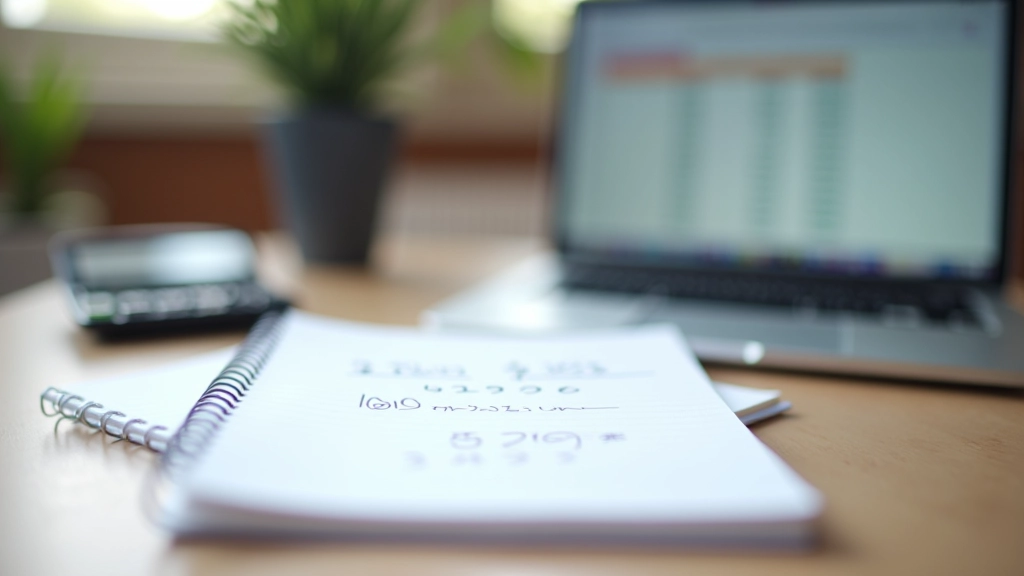
Stop doing math by hand. We'll show you the formulas you'll actually use — adding, averaging, and counting data.
Here's the truth nobody wants to hear: hard drives fail. Computers get stolen. Accidents happen. Your beautifully organized file system doesn't matter if you can't access it.
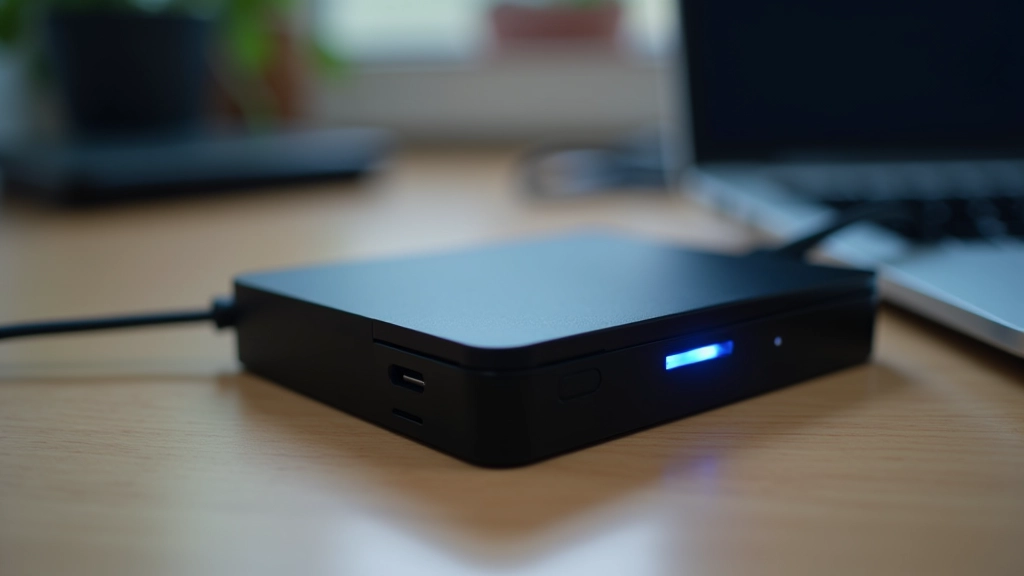
You don't need to be paranoid about this. You just need a backup. And it doesn't have to be complicated. Most people find that one backup method works best for them. The key is picking something you'll actually use.
Three backup approaches that work:
Digital tools and platforms change over time — check the official website or app for the latest details, and take your time getting comfortable with anything new. The principles in this guide are solid, but the exact steps might look slightly different depending on which version of Windows or Mac you're using.

The system only works if you actually use it. That doesn't mean perfection. It means doing it consistently enough that you don't have to hunt for things.
Once a month, spend 10 minutes clearing your Downloads folder. Don't save files to your Desktop — that's not a filing system, that's just clutter. When you create a new file, give it a clear name right away. Don't call it "New Document" and promise you'll rename it later. You won't.
And remember: your system doesn't need to match anyone else's. It doesn't need to be fancy. It just needs to work for you. Start with something simple. You can always refine it as you go.
Organization isn't about being perfect. It's about reducing the friction in your daily work. When you can find what you need in seconds instead of minutes, you'll notice the difference. Your computer becomes a tool that works for you, not against you.
Start today. Pick one folder. Create a few subfolders. Rename a few files. Tomorrow, do a bit more. In a week, you'll wonder how you ever managed without it.